Why the Firestick is the #1 Streaming Device
If you want to cut the cord and save hundreds of pounds a year, you need the right hardware. Right now, learning how to install IPTV on Firestick is the absolute best way to upgrade your living room. The Amazon Fire TV Stick is cheap, powerful, and built on the Android operating system, which means it supports all the best IPTV apps available.
However, because Amazon doesn't host dedicated third-party live TV players in their official app store, you can't just click "download." You have to "sideload" the software. Don't worry—getting IPTV on Firestick is incredibly simple if you follow the right steps. This guide will walk you through exactly how to set up your device safely and securely.
What We'll Cover:
1. Preparing Your Firestick (Enable Unknown Sources)
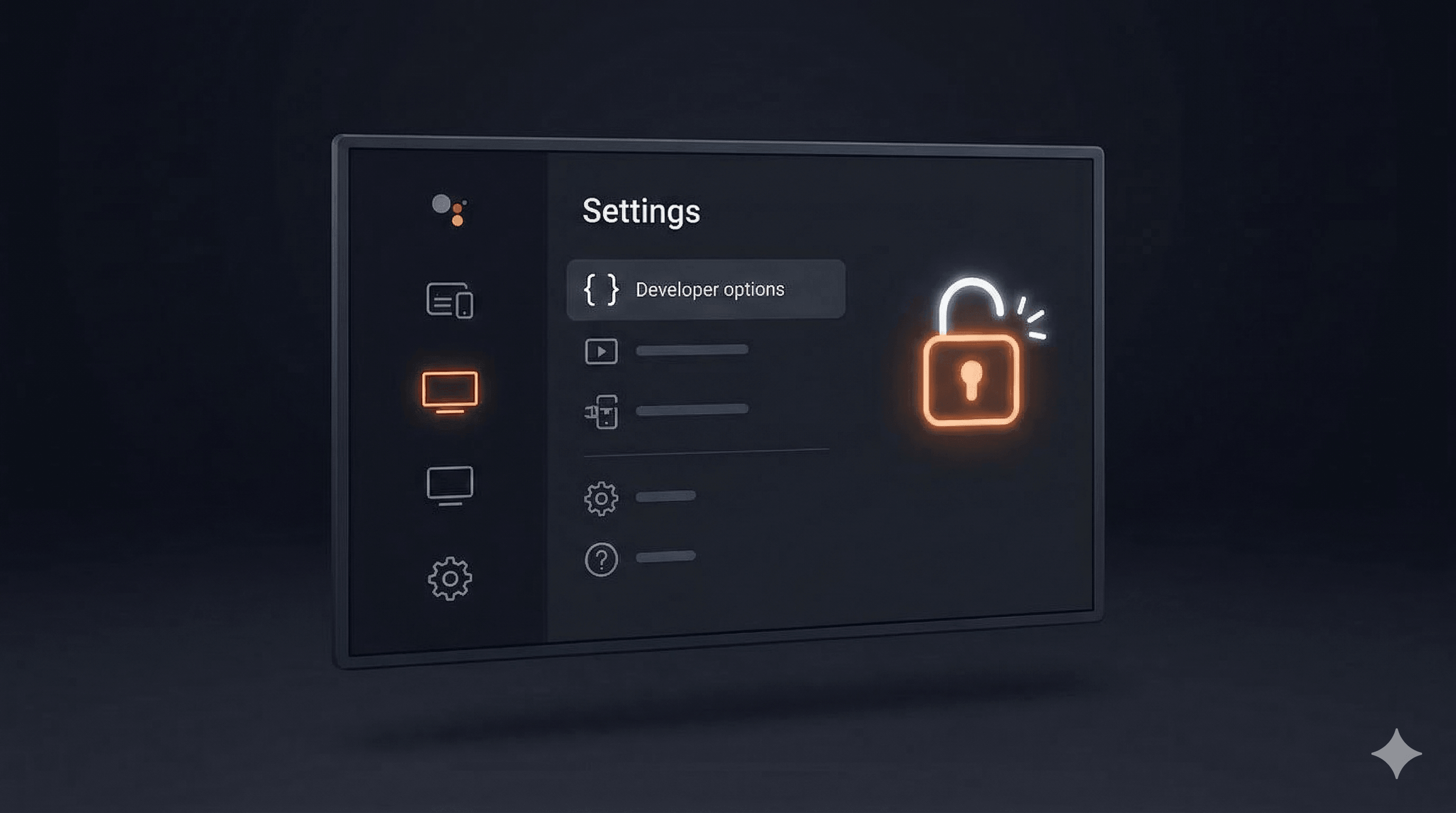
To install IPTV on Firestick, you first need to give your device permission to install apps from outside the official Amazon Appstore. This is perfectly safe and a standard procedure for sideloading.
- Turn on your TV and go to the Firestick Home Screen.
- Scroll to the right and select the Settings icon (the gear).
- Scroll down and click on My Fire TV.
- Click on Developer Options. (Note: If you don't see Developer Options, click on 'About', then click 'Fire TV Stick' 7 times rapidly to unlock it).
- Turn ON Apps from Unknown Sources.
2. Installing the Downloader App
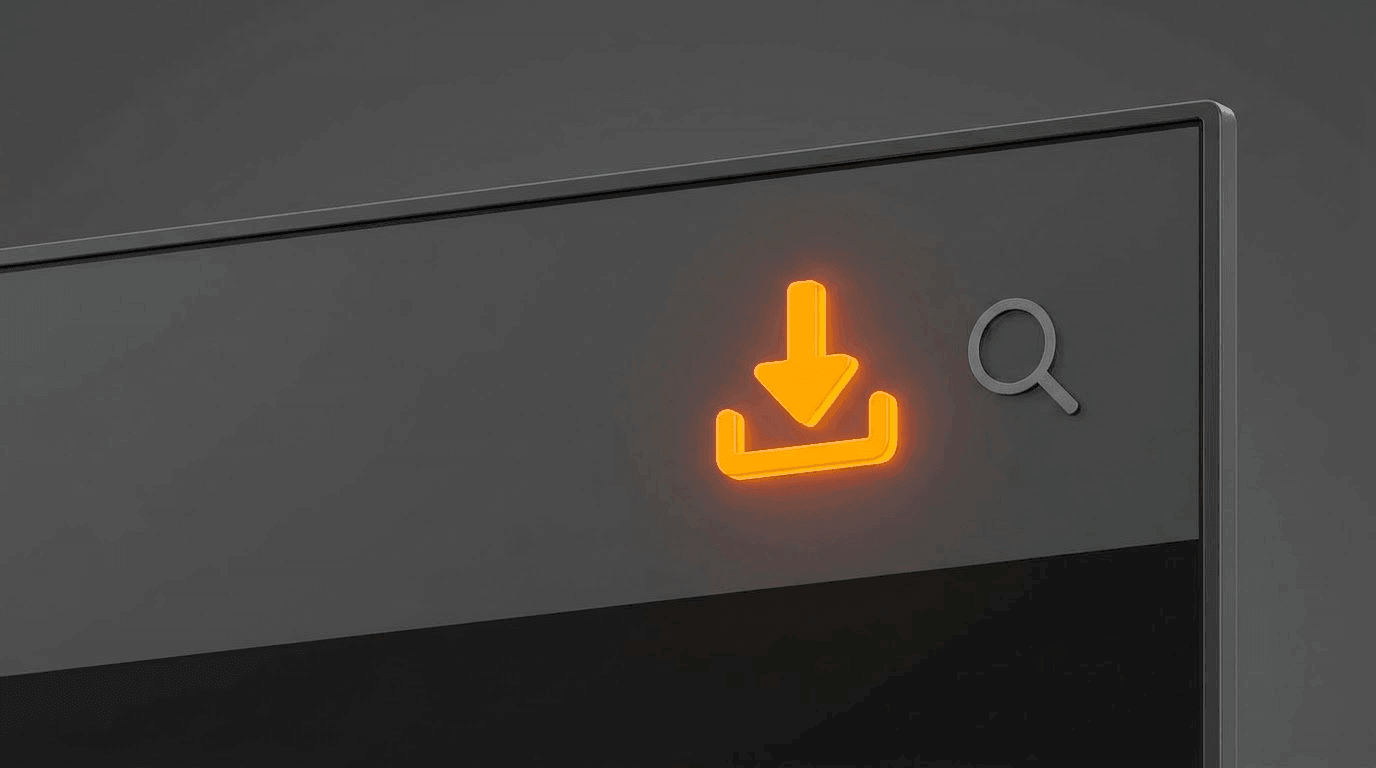
The "Downloader" app is the master key for getting IPTV on Firestick. It acts as a web browser that lets you download Android files directly to your device.
- Go back to the Firestick Home Screen.
- Click on the Find or Search icon (the magnifying glass).
- Type in Downloader.
- Select the orange Downloader app from the results and click Download/Get.
- Once installed, click Open and click Allow when it asks for permissions.
3. How to Install Your IPTV App
Now that Downloader is ready, it's time to install an actual player. The two most popular and reliable apps for watching IPTV on Firestick are TiviMate and IPTV Smarters Pro. For this guide, we'll use IPTV Smarters as it is incredibly user-friendly.
- Open the Downloader app.
- Click on the URL box in the middle of the screen.
- Type in the direct download code for Smarters (Ask your provider for their specific shortcode, or use a generic one if you have the direct APK link) and click Go.
- The app will begin downloading automatically.
- When the download finishes, a prompt will appear. Click Install.
- Once installed, click Done. You can now delete the installation file to save space on your Firestick.
4. Adding Your Subscription to Your Firestick
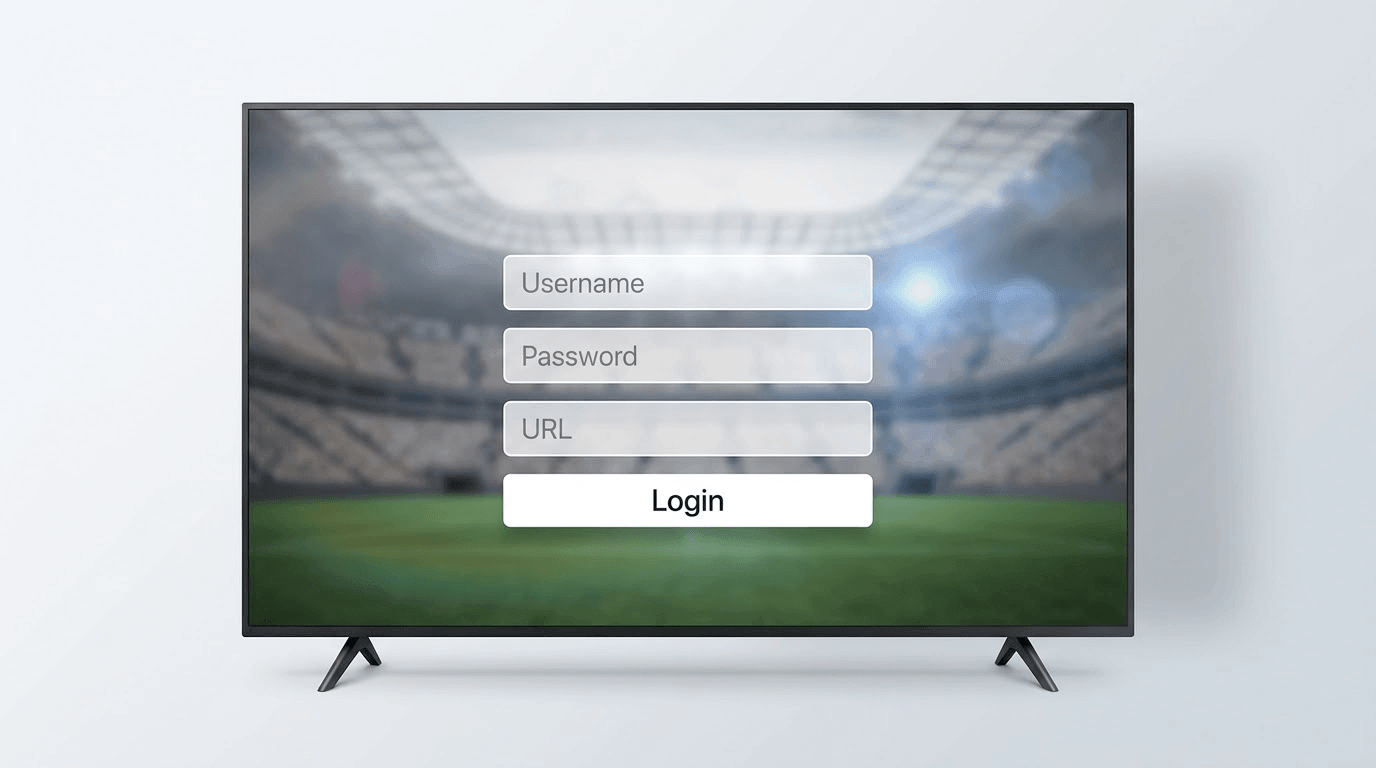
You have the app, now you need the TV channels. When you purchase a subscription from a premium provider like IPTV Select, you will receive login details. Usually, this comes in the form of an Xtream Codes API.
- Go to your Firestick apps and open IPTV Smarters.
- Select Login with Xtream Codes API (this is much easier than typing out a massive M3U link on a TV remote).
- Enter any name in the first box (e.g., "My TV").
- Enter the Username provided to you.
- Enter the Password provided to you.
- Enter the Portal URL provided to you.
- Click Add User.
Congratulations! You have successfully learned how to install IPTV on Firestick. Your live channels, movies, and series will now begin to download. If you ever experience freezing during big matches, make sure to read our guide on How to Stop IPTV Buffering to optimize your network.
Need a Reliable IPTV Subscription for Your Firestick?
Now that your Firestick is set up, you need a high-quality service to watch. Don't settle for laggy, oversold servers. Get instant access to premium UK sports, 4K movies, and 24/7 support.
View Our Premium Packages