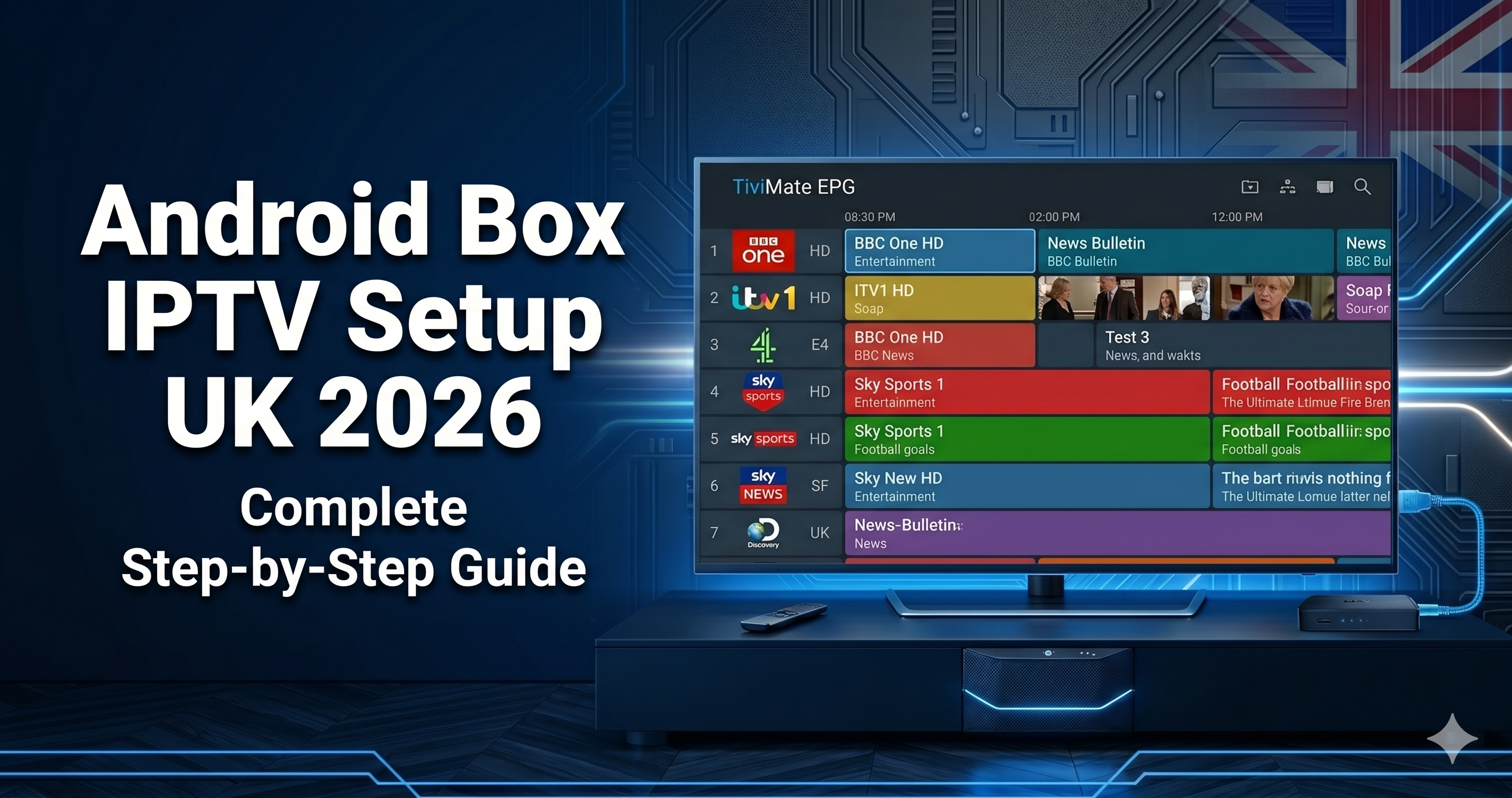
An Android TV box running TiviMate is the gold standard IPTV setup for UK households in 2026 — combining the full flexibility of the Android ecosystem with the most feature-complete IPTV player available on any platform. If you’ve just purchased an Android TV box (Nvidia Shield, Xiaomi Mi Box S, Mecool KM7 Plus, or similar) and want to set it up for IPTV, this complete Android box IPTV setup guide walks you through every step: from initial box configuration through to having TiviMate running with your full channel list, 7-day EPG, and parental controls configured.
Before You Start: What You Need
- Android TV box — Running Android 9.0+ with Google Play Store access. See our Android TV box guide for the top-tested models.
- IPTV subscription credentials — Xtream Codes (server URL, username, password) or M3U URL from your provider. IPTVSelect delivers these via WhatsApp immediately after subscribing.
- Ethernet cable or 5GHz Wi-Fi — Wired Ethernet strongly recommended. Use the box’s Ethernet port or a USB-to-Ethernet adapter if no onboard Ethernet port.
- Google account — Required for Google Play Store installation of TiviMate and other apps.
- USB drive (optional) — For TiviMate Companion recording functionality.
Step 1: Initial Android TV Box Setup
- Connect your Android TV box to your TV via HDMI and to your router via Ethernet (preferred) or Wi-Fi.
- Power on the box — it boots to the Android TV setup wizard.
- Sign in with your Google account when prompted. This is required to access the Google Play Store.
- Complete the network setup — select your Wi-Fi network or confirm Ethernet is connected (shown automatically).
- Accept any system updates when offered — update to the latest Android TV firmware version before proceeding, as updates can affect app compatibility.
Step 2: Install TiviMate from Google Play Store
- From the Android TV home screen, open the Google Play Store.
- Search for “TiviMate IPTV Player” — the developer name is “Artem Lebedev”.
- Select TiviMate IPTV Player and tap Install. The app downloads and installs within 60 seconds.
- If TiviMate doesn’t appear in your regional Play Store, use the sideload method: install the Downloader app from the Play Store, then download the TiviMate APK from tivimate.com. Enable Unknown Sources first: Settings → Device Preferences → Security → Unknown Sources → allow Downloader.
Step 3: Add Your IPTV Playlist in TiviMate
- Open TiviMate. On the welcome screen, select “Add Playlist”.
- Select “Xtream Codes API” (recommended) or “M3U Playlist” if you have an M3U URL instead.
- For Xtream Codes — enter your three credentials:
- Server URL: e.g.
http://yourprovider.com:8080 - Username: your account username
- Password: your account password
- Server URL: e.g.
- Tap “Add Playlist”. TiviMate connects to the server and downloads your channel list, EPG, and VOD catalogue. First load takes 60–120 seconds for 20,000+ channels.
- When loading completes, you’re on TiviMate’s main screen with your full channel list and 7-day EPG populated.
Step 4: Unlock TiviMate Companion
Android box IPTV setup is one of the most searched topics for UK IPTV viewers. In the Google Play Store, search for “TiviMate Companion” — the unlock app by the same developer. Purchase it (approximately £4.99 one-time) to unlock multiple playlists, recording, advanced EPG, and all premium features. The Companion license is tied to your Google account and applies across all devices signed in with the same account — buy once, use on all your Android TV boxes and Fire TV Sticks.
Step 5: Configure TiviMate for UK IPTV
Set Up UK Channel Favourites
Navigate to the All Channels section and browse to UK channels. Long-press BBC One HD in the channel list and select “Add to Favourites”. Repeat for ITV HD, Channel 4 HD, Sky Sports Main Event HD, Sky Sports Premier League HD, Sky Sports F1 HD, TNT Sports 1 HD, and any other channels you watch regularly. Your Favourites group appears at the top of TiviMate’s home screen for instant one-click access. When it comes to Android box IPTV setup, UK viewers have more options than ever in 2026.
Configure Buffer Size
Settings → Player → Buffer Size → set to 5000ms (5 seconds). This provides resilience against brief connection drops without introducing noticeable delay for live content. For 4K streams, you may need to increase this to 8000ms if the 4K server is slightly further away from your ISP’s edge network. For anyone researching Android box IPTV setup, the information in this section is particularly relevant.
Set Time Zone for Correct EPG Times
Settings → EPG → Time Zone → GMT+0 (or GMT+1 during British Summer Time, which runs from late March to late October). If Premier League match times in the EPG show one hour off from actual broadcast times, the time zone setting is incorrect. Switch between GMT+0 and GMT+1 depending on the time of year — this is the most common EPG time display issue for UK IPTV users. This makes Android box IPTV setup one of the most practical choices for UK households.
Step 6: Set Up Parental Controls (Optional)
In TiviMate’s Settings → Parental Controls, enable the parental PIN and set a 4-digit code. Assign adult channel categories to the restricted list. If multiple users share the same Android box, create a separate TiviMate profile for children (Settings → Profiles → Add Profile) configured to show only age-appropriate categories. The PIN is required to switch to adult profiles or access locked categories. Understanding Android box IPTV setup will help you make the best decision for your streaming needs.
Frequently Asked Questions — Android Box IPTV Setup
Which Android TV box is best for IPTV in the UK?
The Nvidia Shield TV Pro is the premium choice — unmatched processing power, AI upscaling for HD-to-4K content, and Plex Media Server capability. For best value, the Xiaomi Mi Box S 2nd Gen at approximately £59 or the Mecool KM7 Plus at approximately £69 offer excellent performance for HD and 4K IPTV at accessible price points. See our full Android TV box UK guide for detailed comparisons. The popularity of Android box IPTV setup among UK viewers continues to grow year on year.
Can I use IPTV Smarters instead of TiviMate on an Android box?
Yes. IPTV Smarters is available from the Google Play Store and works well on Android TV boxes. The setup process is nearly identical to the Xtream Codes method described above for TiviMate. TiviMate is the recommended choice for its superior EPG interface and faster channel switching, but IPTV Smarters is a fully capable alternative if you prefer its interface or have used it on other devices. When it comes to Android box IPTV setup, UK viewers have more options than ever in 2026.
How do I update the EPG on my Android TV box?
In TiviMate, EPG updates automatically every 24 hours. To force a manual update: Settings → EPG → Update Now. A full EPG refresh takes approximately 2–5 minutes depending on your connection speed and the size of your channel list. If the EPG consistently shows incorrect times, check the Time Zone setting in TiviMate’s EPG settings — UK users need GMT+0 or GMT+1 (BST) depending on the current date. For anyone researching Android box IPTV setup, the information in this section is particularly relevant.
Related IPTV Guides
- best Android TV box for IPTV UK 2026
- TiviMate setup guide UK — detailed configuration
- fix IPTV freezing on Android box
- best IPTV services UK 2026
Android box set up and ready? Start your free 24-hour IPTVSelect trial — Xtream Codes credentials via WhatsApp, TiviMate populated with 20,000+ channels in under 5 minutes. View plans from £3/month equivalent. This makes Android box IPTV setup one of the most practical choices for UK households.
Everything You Need to Know About Android box IPTV setup
If you are looking for the best Android box IPTV setup experience in the UK, the key is choosing a reliable provider. Many UK viewers searching for Android box IPTV setup are surprised by how affordable and accessible it has become in 2026. The demand for Android box IPTV setup among UK households has grown significantly over the past two years. Getting started with Android box IPTV setup is straightforward once you have the right equipment and subscription in place. For the best results with Android box IPTV setup, a stable broadband connection of at least 25 Mbps is recommended. Choosing the right Android box IPTV setup provider makes a huge difference to your overall streaming experience.
Useful External Resources
For more on Android TV and IPTV standards, see the official Android TV page from Google and the IPTV overview on Wikipedia.
Further Reading