Sky Glass televisions and Sky Stream pucks have transformed how millions of UK households consume television by ditching the traditional satellite dish in favour of full broadband streaming. However, for viewers wanting the versatility, international sports coverage, and massive cost savings of an IPTV subscription in the UK, Sky’s ecosystem presents an immediate roadblock. If you are searching for how to get sky glass iptv working, you have probably already realized that Sky’s proprietary operating system does not include an open app store or native sideloading features.
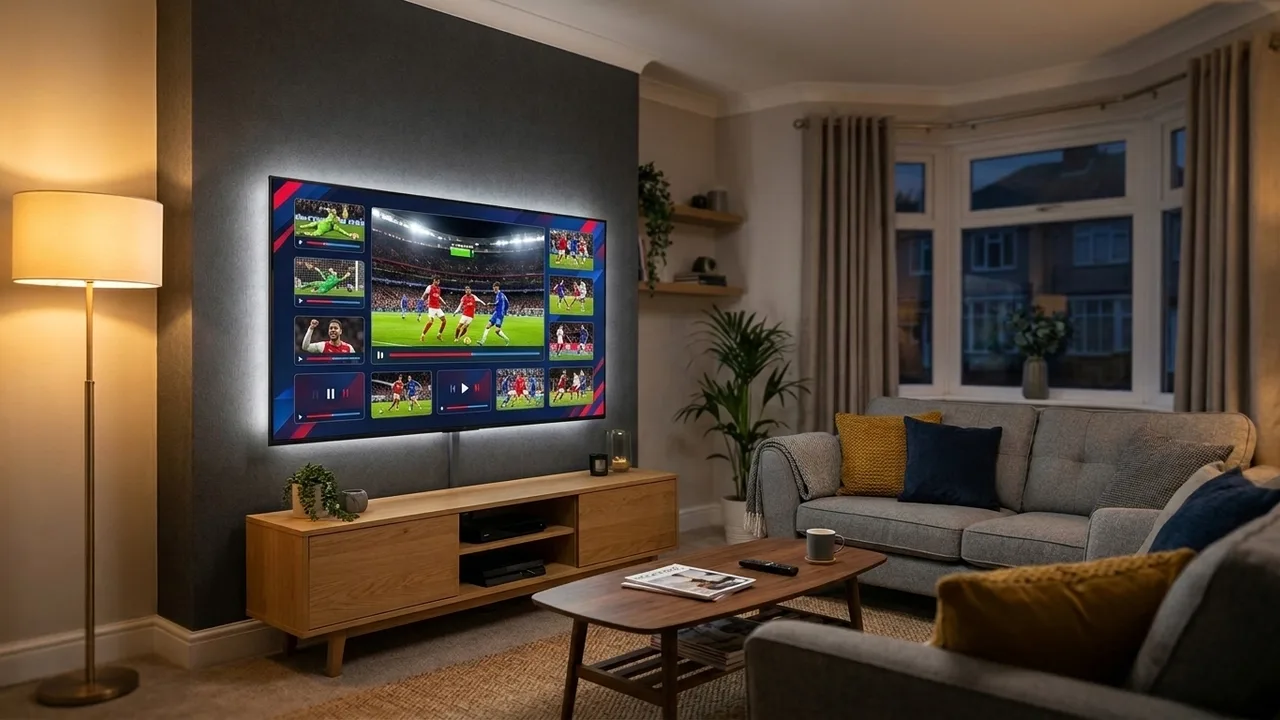
In this comprehensive 2026 UK guide, we break down the exact technical limitations of Sky’s Entertainment OS, why conventional sideloading methods like the Downloader app fail on Sky hardware, and the three proven workarounds that allow you to watch crystal-clear 4K IPTV on your Sky Glass TV or alongside Sky Stream with zero lag or picture degradation.
Can You Install IPTV Directly on Sky Glass or Sky Stream?
The short and honest answer is no, you cannot install IPTV apps natively or directly onto Sky Glass or the Sky Stream puck. Unlike smart televisions powered by Google TV, Android TV, or even Samsung Tizen and LG webOS, Sky Glass runs a custom, locked-down operating system known as Entertainment OS.
Here is why native installation is blocked by design:
- No Open App Store: Sky curates every single app hosted on Entertainment OS (such as Netflix, BBC iPlayer, ITVX, Disney+, and Discovery+). There is no Google Play Store, Amazon Appstore, or third-party repository available.
- No Sideloading Capability: Sky Glass does not offer a developer menu or “Install Unknown Apps” permission toggle. Tools like the Downloader app or direct APK package installers cannot execute on Entertainment OS.
- No Web Browser or Local File Player: There is no built-in internet browser with file system permissions capable of downloading or parsing M3U playlist files or Xtream Codes API protocols.
While this closed architecture ensures a simplified user experience for standard Sky packages, it completely prevents native installation of leading players like TiviMate or IPTV Smarters Pro. Fortunately, Sky Glass TVs feature three external HDMI 2.1 ports, allowing UK viewers to bypass Entertainment OS limitations entirely without replacing their television.
The 3 Proven Workarounds to Watch IPTV on Sky Glass
Method 1: Connect a 4K Streaming Stick to Sky Glass HDMI (Best Method)
By far the most reliable, cost-effective, and performance-optimised solution is connecting an external 4K media player to one of the HDMI inputs located at the rear of your Sky Glass TV. An Amazon Fire TV Stick 4K Max or Chromecast with Google TV 4K costs between £35 and £65 and transforms your Sky Glass screen into an open streaming powerhouse.
Because the Sky Glass display features a vibrant 4K Quantum Dot panel with Dolby Vision and a built-in six-speaker Dolby Atmos soundbar, connecting an external Firestick running IPTV lets you take full advantage of Sky’s superior TV hardware while bypassing its restrictive software.
Method 2: Screen Mirroring / AirPlay Casting to Sky Glass
If you prefer not to purchase an additional streaming dongle, Sky Glass supports native Apple AirPlay 2 and screen mirroring from compatible mobile devices and laptops:
- Apple Devices (iPhone / iPad / Mac): Install an IPTV player like GSE Smart IPTV, Smarters Pro, or Snappier on your iOS device. Open the live stream, tap the AirPlay icon in the upper-right corner, and select your Sky Glass TV.
- Android Devices: Use the “Smart View” or “Cast Screen” feature found in your quick settings tray. Connect to your Sky Glass TV on the same Wi-Fi network and stream directly from players like XCIPTV or Televizo.
Note: While casting is convenient for occasional viewing, it introduces slight input latency, drains your mobile battery, and can suffer from Wi-Fi packet drops during live Premier League fixtures. For daily viewing, Method 1 is strongly recommended.
Method 3: Dedicated Android TV Box (Formuler / Nvidia Shield Pro)
For home theatre enthusiasts who demand Gigabit Ethernet ports, dedicated physical remote controls with numeric keypads, and automated recording to external USB storage, pairing a dedicated Android TV box (such as the Formuler Z11 Pro Max or Nvidia Shield TV Pro) via HDMI is the ultimate setup. Formuler’s MYTVOnline 3 software provides an experience virtually indistinguishable from traditional satellite TV guides.
Step-by-Step Setup: Firestick 4K Max on Sky Glass
Follow these exact steps to configure an external streaming stick on your Sky Glass TV for buffer-free 4K playback:
- Plug into HDMI 1 or HDMI 2: Locate the HDMI inputs on the back of the Sky Glass panel. Insert your Fire TV Stick 4K Max. Use the included power adapter plugged into a mains wall socket rather than a TV USB port to ensure sufficient power delivery during 4K HDR playback.
- Configure Sky Glass Picture Settings: Go to Settings > Picture & Sound > HDMI Inputs on your Sky Glass remote. Ensure the selected HDMI port is set to Enhanced (Format 2.1 / EDID 2.0) to enable full 4K 60Hz RGB HDR passthrough.
- Switch Inputs: Press the Home button on your Sky Glass remote, scroll down to the Inputs rail, and select the HDMI port your stick is connected to.
- Install Your IPTV App: On your Firestick, open the Amazon Appstore, install the Downloader app, enable unknown sources in Developer Options, and install your preferred player (such as TiviMate or IPTV Smarters Pro).
- Input Your UK Subscription Details: Launch the player, select Xtream Codes API or M3U URL, enter your server URL and login credentials provided by your best UK IPTV provider, and let the playlist sync.
Sky Glass Entertainment OS vs Companion Firestick 4K Max
| Feature | Sky Glass (Native OS) | Sky Glass + Firestick 4K Max |
|---|---|---|
| IPTV App Support | None (Blocked) | Full (TiviMate, Smarters, XCIPTV, Kodi) |
| Sideloading APKs | No | Yes (Via Downloader) |
| Monthly Subscription Cost | £28–£85+/mo (Contract) | From £9.99/mo (No Contract Deals) |
| 3pm Saturday Blackout | Blocked on Sky Sports | Live & Unrestricted in 4K UHD |
| Dolby Atmos / Vision | Supported natively | Passthrough supported via HDMI |
| VPN Protection | No VPN app support | Full native VPN apps (Best VPN for IPTV) |
Optimising Sky Glass Audio & Video for IPTV Live Sports
Sky Glass features an integrated six-speaker Dolby Atmos sound system, making it one of the best-sounding smart TVs on the UK market. To ensure your IPTV sports streams sound as good as they look:
- Audio Passthrough: On your Firestick, navigate to Settings > Display & Sounds > Audio > Surround Sound and select Best Available. This ensures multi-channel 5.1 stadium audio streams pass directly to the Sky Glass soundbar without downmixing to stereo.
- Frame Rate Matching: In your IPTV player settings (such as TiviMate’s Playback settings), enable Auto Frame Rate (AFR). UK sports broadcasts stream at 50Hz (50 frames per second). Matching your display output to 50Hz prevents micro-stutter during fast-moving football and Formula 1 coverage.
- Broadband Speed Check: For pristine 4K 60fps streaming without mid-match buffering, ensure your broadband maintains at least 35–50 Mbps. Consult our IPTV internet speed guide for detailed speed requirements across UK broadband providers (BT, Virgin Media, Sky, and Vodafone).
Frequently Asked Questions About Sky Glass IPTV
Can Sky detect if I use an IPTV stick on Sky Glass?
No. When you connect a Firestick or Android TV box via HDMI, Sky Glass simply operates as a high-definition monitor. Sky cannot monitor or inspect what data passes through the HDMI input. However, using a reliable VPN on your Firestick is still recommended to prevent UK ISP throttling during peak football hours.
Can I install Downloader on Sky Glass directly?
No. The Downloader app is an Android/Fire OS application. Sky Glass runs Entertainment OS, which does not execute Android APK binaries.
Can I control my Firestick with the Sky Glass remote?
Yes, via HDMI-CEC. Ensure HDMI Control (CEC) is switched on in both Sky Glass settings and Firestick settings. You can use your Sky Glass remote’s directional pad and select buttons to navigate menus on your connected stick.
Does this workaround also work on the standalone Sky Stream puck?
Yes. While you cannot plug a Firestick into a Sky Stream puck, you simply plug both the Sky Stream puck and your Firestick into separate HDMI inputs on your TV and toggle between them whenever you want to stream IPTV.
Where can I test an IPTV service before committing?
You can test high-definition UK channels, live sports, and VOD completely risk-free by requesting our instant 24-hour IPTV free trial.