Few things are more frustrating than sitting down to watch a weekend football fixture or evening cinema release only to discover your iptv not working on firestick. Whether your player application is stuck on a spinning loading wheel, displaying a black screen with audio only, freezing every 15 seconds, or failing to fetch your channel playlist entirely, these errors are surprisingly common across the UK. Fortunately, in almost every instance, the underlying issue can be pinpointed and solved in less than five minutes.
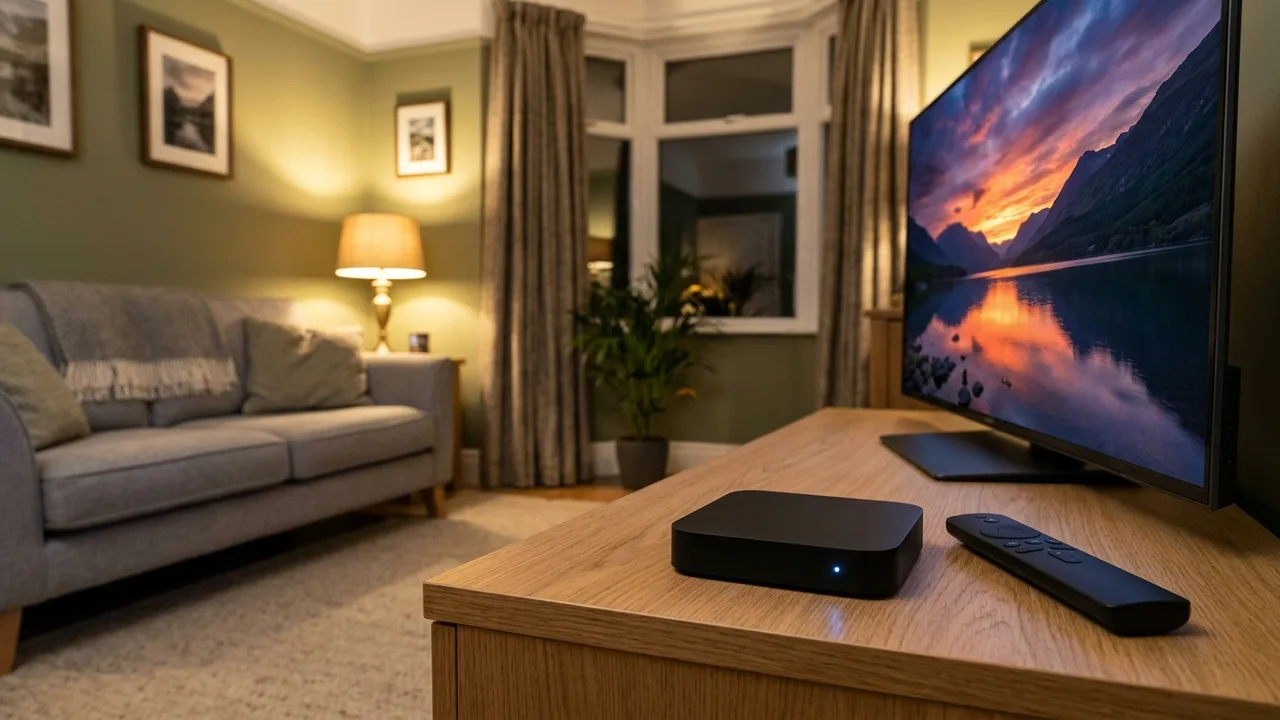
In this practical troubleshooting guide, we walk through the 10 proven fixes to get your IPTV running smoothly on any Amazon Fire TV device—from the budget Fire TV Stick Lite up to the Firestick 4K Max and Fire TV Cube. If you need a stable backup service while diagnosing your hardware, you can test our zero-buffer servers with a free 24-hour IPTV trial.
Why Does IPTV Stop Working on Amazon Firestick?
Before jumping into the fixes, it helps to understand why your stream failed. On Fire OS, issues typically fall into one of four categories:
- App Cache Overload: Streaming high-bitrate 1080p and 4K channels quickly fills the limited internal RAM and flash storage on Amazon Firesticks, causing memory starvation and sudden crashes.
- UK ISP Throttling or DNS Blocks: Major UK broadband providers (such as BT, Virgin Media, Sky, and EE) enforce court-ordered filters that throttle or sever streaming server IPs during high-profile live sports events.
- Hardware Decoder Mismatches: Certain video streams encoded in HEVC/H.265 or interlaced 50fps struggle on older software decoders without GPU acceleration enabled.
- Outdated Playlists or Server Maintenance: Your provider may have refreshed their server port, domain name, or load balancer endpoints without your app automatically picking up the change.
The 10 Proven Fixes for IPTV on Firestick
1. Clear App Cache and Force Stop the Player
This resolves over 60% of sudden freezing and playback crashes on Firesticks:
- Press the Home button on your Firestick remote and select Settings (Gear Icon).
- Navigate to Applications > Manage Installed Applications.
- Select your player (e.g., TiviMate, IPTV Smarters, XCIPTV, or Televizo).
- Click Force Stop, then click Clear Cache (do NOT click Clear Data, as this will wipe your saved login credentials).
- Relaunch the app and try streaming again.
2. Power Cycle Your Firestick and Broadband Router
A soft restart often fails to clear stubborn network socket hangs. Unplug your Firestick directly from the HDMI port and power socket for 60 seconds. At the same time, power off your home broadband router. Turn the router back on first, wait for all green internet LEDs to stabilize, and then plug your Firestick back in. This forces your Firestick to establish a clean, low-latency DHCP IP lease.
3. Enable a UK-Optimized VPN to Bypass ISP Throttling
If your channels work flawlessly during off-peak hours but buffer constantly on Saturday afternoons at 3:00 PM or during Champions League games, your internet service provider is actively blocking the server connection. Connecting through a trusted service from our Best VPN for IPTV UK Guide encrypts your traffic with 256-bit AES encryption, making it impossible for your ISP to detect or throttle your stream.
4. Change DNS Settings on Your Firestick
Many UK ISPs enforce streaming blocks at the DNS level. Replacing your default ISP DNS with public resolvers like Cloudflare or Google can immediately restore connectivity:
- Go to Settings > Network on your Firestick.
- Select your Wi-Fi network, click Forget, and reconnect.
- Under IP Settings, select Static. Set Primary DNS to
1.1.1.1(Cloudflare) and Secondary DNS to8.8.8.8(Google).
5. Switch Between Hardware and Software Decoders
If you have audio but a black screen (or severe video stuttering), your player is likely struggling to decode the stream format. Open your player settings (in apps like TiviMate or Televizo) and switch the video decoder from Software (SW) to Hardware (HW or HW+). Hardware acceleration uses the Firestick’s onboard graphics chip to render 50/60fps sports smoothly.
6. Free Up Internal Firestick Storage
Amazon Firesticks require at least 1.5 GB of free space to buffer high-definition streams effectively. Go to Settings > My Fire TV > About > Storage. If available space is under 1 GB, uninstall unused applications, delete old APK installation files downloaded via the Downloader app, and clear screen-saver caches.
7. Switch to the 5 GHz Wi-Fi Band or Use an Ethernet Adapter
The standard 2.4 GHz Wi-Fi frequency suffers from extreme interference from microwaves, baby monitors, and neighbouring routers in UK terraced and semi-detached houses. Connect your Firestick to your router’s 5 GHz band, or purchase an official Amazon Ethernet adapter for a direct wired connection that delivers reliable internet speeds for IPTV.
8. Refresh Your EPG and Reload Playlists
Corrupted EPG databases can cause player apps to hang on launch. Go to your app’s playlist settings, choose Update EPG, and force an immediate playlist reload. If you use an Xtream Codes API login, logging out and logging back in will force a fresh sync from the server.
9. Test with an Alternative IPTV Player
Sometimes the issue is an app-specific bug following a recent Fire OS update. If TiviMate is failing, try testing your credentials in IPTV Smarters Pro or XCIPTV. If the second app works, the problem is with the original player’s installation and not your IPTV service.
10. Verify Your Provider’s Server Status
If all local troubleshooting steps fail, the issue may be server-side maintenance by your provider. Reputable UK providers maintain 99.9% uptime, but cheap, overloaded services frequently crash during major sporting events. Consider upgrading to a premium, dedicated platform like IPTVSelect UK.
Frequently Asked Questions
Q: Why does my Firestick show a black screen on sports channels only?
Sports channels stream at higher bitrates (often 1080p 50fps or 4K 60fps). Black screens usually mean your Firestick’s hardware decoder cannot process the codec or your ISP is actively throttling that specific stream IP.
Q: Which Firestick model is best for buffer-free IPTV in the UK?
The Amazon Fire TV Stick 4K Max (2nd Gen) is the gold standard for UK viewers thanks to its Wi-Fi 6E support, 2GHz quad-core processor, and 16GB of internal storage.
Summary
When your IPTV stops working on Firestick, clearing app cache, toggling hardware acceleration, and enabling a secure VPN will resolve the vast majority of streaming issues. If you are tired of constant buffering on unreliable servers, make the switch to a verified UK service today with our IPTV Subscription UK Plans or test our network risk-free with an IPTV Free Trial.